
Publish Google OAuth App: How to Change from Testing to Production
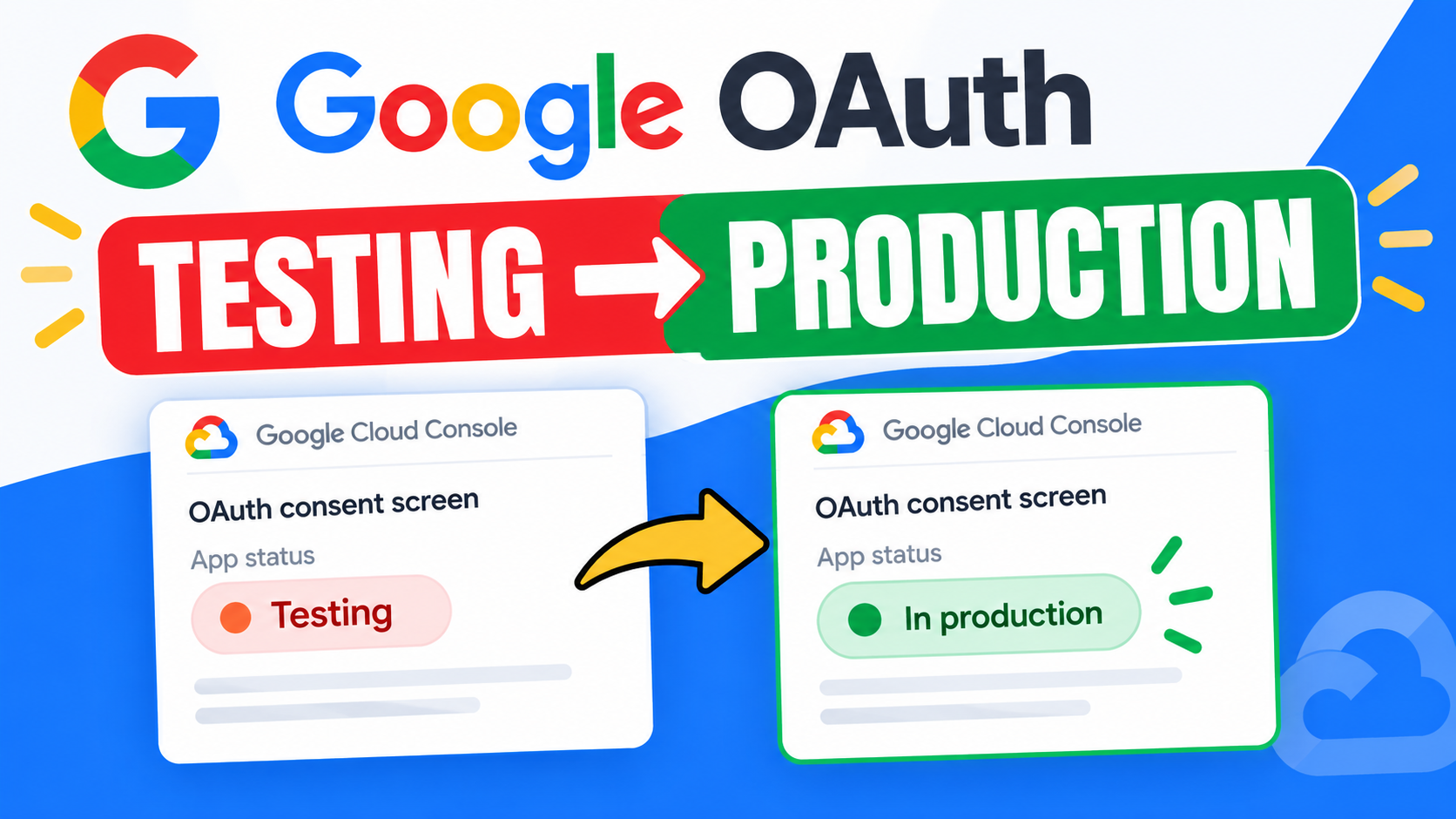
How to Publish a Google OAuth App from Testing to Production
If you are building an application that uses Google authentication, you may notice that your OAuth app is initially set to Testing.
In this tutorial, I will show you how to change your Google OAuth app from Testing to Production.
This is useful when you are getting your application ready for real users and want to publish the OAuth consent screen.
How to Change Your Google OAuth App from Testing to Production
Once you are inside your Google Cloud Console, go to APIs & Services and then open the OAuth consent screen.
When you come to the Audience section, you will see that the app is currently in Testing.
Before publishing the app, you need to make sure the required information under Branding has been completed.
Step 1: Go to Branding
From the OAuth consent screen, go to Branding.
Here, you will see some information that you need to provide about your application.
Depending on your application and the configuration of your Google Cloud project, you may need to provide details such as:
- App name
- App logo
- Application homepage
- Privacy Policy link
- Terms of Service link
Step 2: Add Your App Logo
The first thing you can do is add your application logo.
Click the option to add an app logo and upload the logo you want to use for your application.
It is better to use a logo that clearly represents your application or company.
Step 3: Add Your App Domain
Next, enter your application domain.
This should be the domain where your application or website is hosted.
For example, if your application is hosted on:
you would enter your application domain accordingly.
Make sure the domain you provide is associated with your application.
Step 4: Add Your Privacy Policy
You will also need to provide a Privacy Policy URL.
This should be a publicly accessible page explaining how your application handles user information.
For example:
If you have not created your Privacy Policy yet, you can create the page and come back to add the link later.
This is an important part of preparing an application for production because users should be able to understand how their information is handled.
Step 5: Add Your Terms of Service
You may also need to provide a Terms of Service URL.
If your application has a Terms of Service page, enter the link here.
If you do not need to provide one for your particular configuration, you can leave the field according to the requirements shown in your Google Cloud Console.
Step 6: Save Your Branding Information
After entering the required information, review everything to make sure the details are correct.
Then click Save.
Your branding information should now be updated.
Step 7: Go Back to Audience
After saving your branding information, go back to the Audience section.
You should still see that your application is currently in Testing.
Look for the option to Publish App.
Click Publish App.
Google will show you a confirmation asking whether you want to publish the application.
Review the information and confirm the action.
Once the process is completed, your application will now be published.
What Happens After Publishing?
Your OAuth app will move from the testing stage toward production.
This is an important step if you are preparing your application for real users rather than only testing it yourself or with a limited group of test users.
However, publishing the app does not mean that you should ignore Google’s verification requirements. Depending on the scopes and permissions your application requests, Google may require additional verification.
Final Thoughts
That is how you can change a Google OAuth application from Testing to Production.
The basic process is:
- Open Google Cloud Console.
- Go to APIs & Services.
- Open the OAuth consent screen.
- Go to Branding.
- Add your application information and logo.
- Add your application domain and required policy links.
- Save the changes.
- Go to Audience.
- Click Publish App.
- Confirm the publication.
Before publishing, make sure your application information, Privacy Policy and other required details are properly set up. Also keep in mind that Google’s Cloud Console interface and requirements can change over time.