
Getting Started with CrazyTalk Animator: 7 Easy Things Beginners Should Know
Getting Started with CrazyTalk Animator: 7 Easy Things Beginners Should Know
If you are interested in cartoon animation and you are just getting started, CrazyTalk Animator is one software you can take a look at. It provides different tools that can help you create characters, scenes and animations without having to build everything from scratch.
In this tutorial, I will be taking you through the basics of getting started with CrazyTalk Animator. This is an introductory class, so we are not going deep into animation yet. The main goal here is to understand the software interface, know where the different tools are and see some of the things you can do with the software.
Before we start, make sure you have downloaded and installed CrazyTalk Animator on your computer.
Getting Started with CrazyTalk Animator
After downloading the software, locate the CrazyTalk Animator icon on your computer and open it.
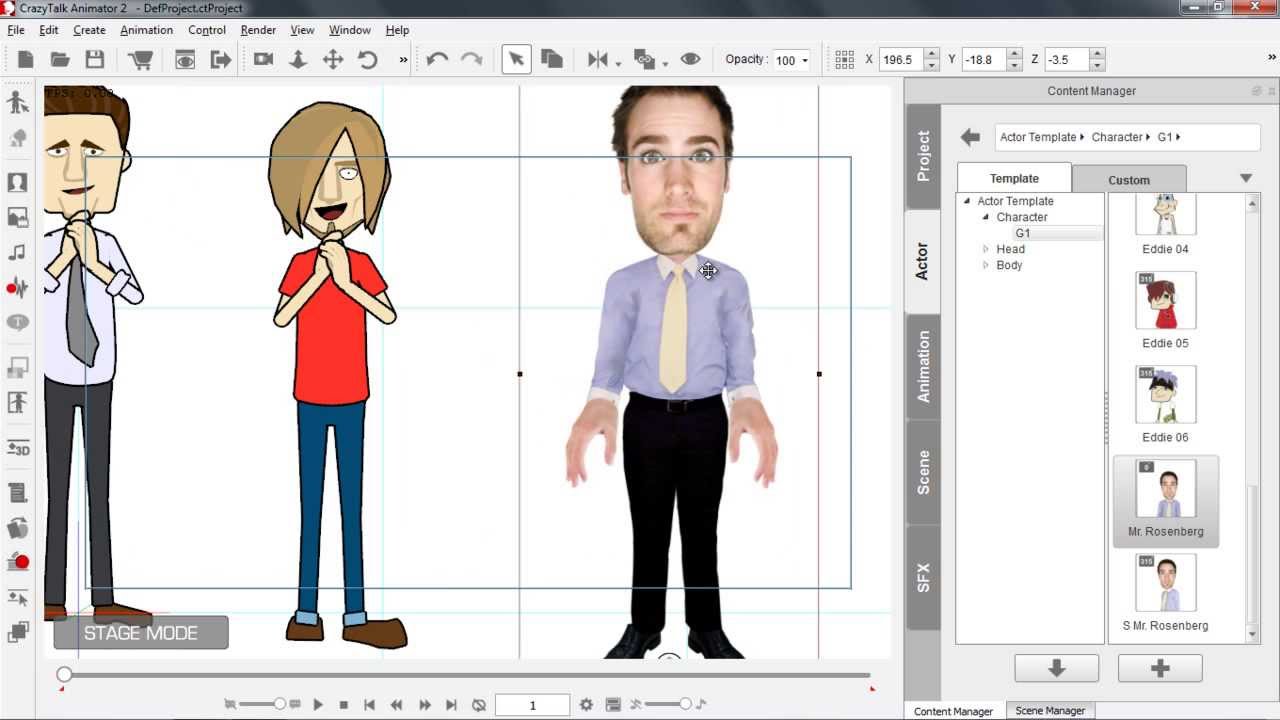
When the software opens, create a new project. You should now see the main working area where you will be creating your animation.
At first, the interface might look like a lot of things are happening at the same time. Don’t worry about that. As we continue using the software, the different sections will become easier to understand.
The software has different panels and tools for working with your project, characters, animations and scenes.
Let’s take them one after another.
1. Understanding the Project Area
The project area is where you work on your animation project.
This is where you can save your project and access the different elements you are using for the animation.
You will also find different sections for things such as actors, animation, scenes and effects.
The important thing at this stage is not to try to learn everything at once. Just understand that CrazyTalk Animator has different libraries and panels where you can find the resources you need for your animation.
As you continue with the tutorials, we will be making use of these different sections.
2. Adding Characters to Your Animation
One of the first things you will probably want to do is add a character.
To do this, go to the Actor section and look under the available characters.
You will find different types of characters. Some of them may be available for free, while others may require you to download or purchase additional content.
For example, you can look under the G2 or G3 character sections and select one of the available human characters.
Once you find a character you want to use, you can simply drag the character into your working area.
This is one of the nice things about working with CrazyTalk Animator. You don’t always have to create a character from the beginning. You can select an existing character and bring it directly into your scene.
After adding the character, you can move it around and adjust its size.
For example, you can drag the character to make it bigger or smaller, and you can move it to the middle of the scene or wherever you want it to appear.
There are also different types of characters available, so you can take some time to look through the library and find the one that fits the project you want to create.
3. Working With Animals and Other Characters
The characters are not limited to human beings.
You can also find animals and other types of characters in the library.
So, if you are creating a cartoon story that requires an animal character, you can look through the available animal options and drag the one you want into your scene.
There are also other character-related options such as kids, sketches, princesses and different types of heads and body parts.
This gives you different possibilities when creating your animation.
You don’t necessarily have to use everything you see. Just look through the available resources and choose the ones that fit what you are trying to create.
4. Understanding Face Presets
Another interesting part of the software is the ability to work with the character’s face.
For example, you can select a character and look at the available Face Preset options.
These presets allow you to change the appearance or expression of the character’s face.
You can select a particular face and preview how it looks.
To preview an animation or movement, you can use the preview controls and press the space bar. This allows you to see how the character looks and behaves before you continue working on the project.
This is useful because you can experiment with different facial appearances and choose the one that works best for your animation.
5. Making Characters Look Angry, Excited and More
Apart from changing the face, you can also work with body presets and different character expressions.
For example, you can select a character and go to the Body Preset section.
Here, you may find different expressions or actions.
You can select something like an angry expression and preview it.
When you press the space bar, you can see the character acting angry.
You can also find other expressions and actions, such as being excited, talking or moving.
This is where the animation starts becoming more interesting because you are not just placing a character on the screen. You can actually give the character different expressions and movements.
Later in this tutorial series, we will make more use of these features as we start creating actual animations.
6. Adding Scenes and Backgrounds
Characters are only one part of an animation. You also need somewhere for the character to be.
This is where the Scene section comes in.
CrazyTalk Animator provides different scenes that you can use as backgrounds for your animation.
For example, you may find a classroom scene or other environments that can fit the story you are trying to create.
You can select a scene and drag it into your working area.
The scene then becomes the background or environment for your animation.
This is particularly useful when you are creating educational cartoons, storytelling videos or other animated content where the characters need to interact with a particular environment.
You can learn more about creating and working with scenes from Reallusion’s official CrazyTalk Animator training resources, which cover topics including the production environment, character creation and 2D character animation.
7. Don’t Try to Learn Everything at Once
When you first open CrazyTalk Animator, there may be many buttons, panels and options that can make the software look complicated.
My advice is simple: don’t try to learn everything at once.
Start with the basic things.
Learn how to create a project.
Learn how to add a character.
Learn how to move and resize the character.
Learn how to change facial expressions.
Learn how to add a scene or background.
Then, gradually, you can start learning how to animate the character.
CrazyTalk Animator has tools for character animation, facial animation, motion editing and other features, so there is a lot to explore as you become more comfortable with the software.
What We Will Learn Next
This first class is only an introduction to the software.
We have looked at the general interface, characters, face presets, body presets and scenes. We have also seen that there are different resources available for creating our animation.
In the next class, we will begin working more directly with animation.
We will look at how to animate a character and how to make the character perform different actions.
So, if you are following this tutorial series, don’t worry if you don’t understand everything yet. The important thing is to become familiar with the software first.
Once you understand where the different tools are located, working with CrazyTalk Animator becomes much easier.
For now, take some time to explore the characters, scenes and other resources available in the software.
Choose a character you like, try different expressions and see how the preview works.
Then we can move on to the actual animation.
See you in the next class. Thank you.