
How to Create a Menu in WordPress for Beginners: 7 Easy Steps
How to Create a Menu in WordPress for Beginners: 7 Easy Steps
If you have created a WordPress website and you want your visitors to easily move from one page to another, then you need to understand how the WordPress menu works.
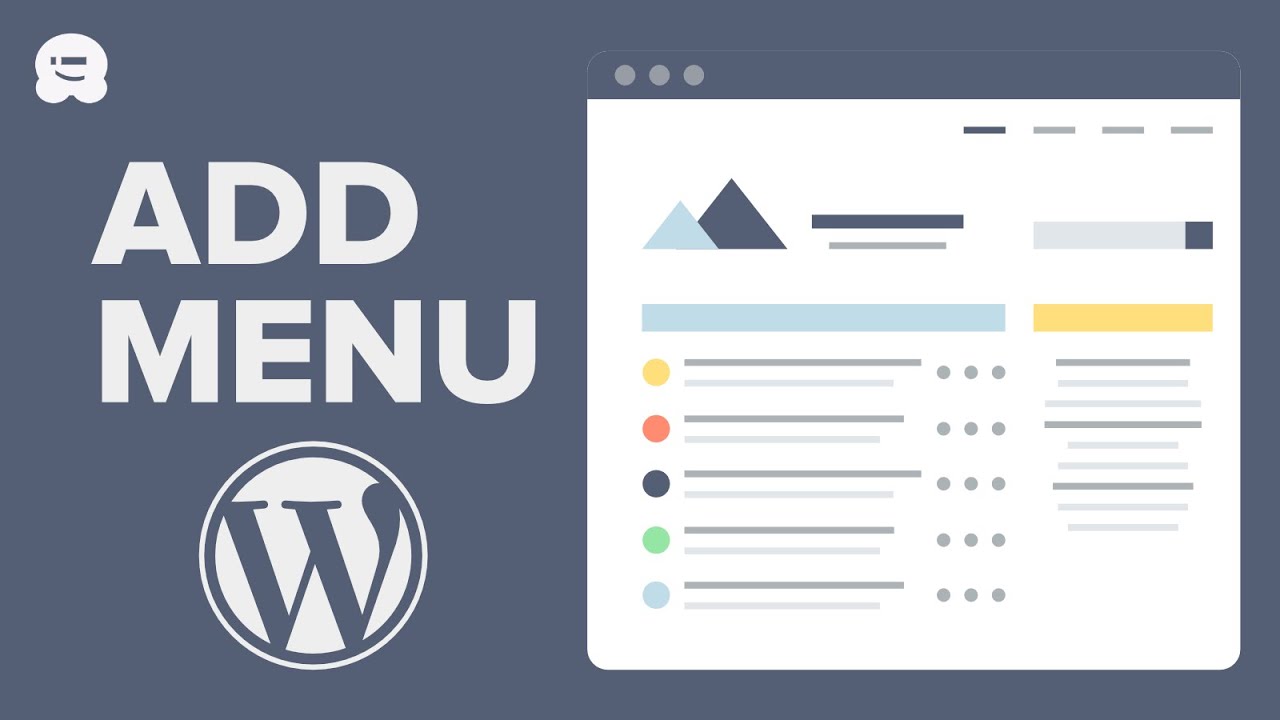
In this tutorial, I will show you how to create a menu in WordPress for beginners and how you can add different pages and categories to the menu.
The process is quite simple, especially once you understand where to find the menu settings in your WordPress dashboard.
How to Create a Menu in WordPress for Beginners
To start, log in to your WordPress dashboard.
From your dashboard, look for the menu or navigation section. Depending on the WordPress theme and version you are using, the exact location may be slightly different.
The important thing is to locate where you can create and manage your website’s navigation menu.
Once you are there, you can start creating your menu.
1. Create a New Menu
The first thing I want to do is create a new menu.
When you get to the menu section, you should see an option to create a new menu.
Give the menu a name.
You can use something simple such as Main Menu or Primary Menu.
The name is mainly for you to identify the menu from your WordPress dashboard, so you can choose any name that makes sense to you.
After giving the menu a name, save or create the menu.
Now you have an empty menu that you can begin adding items to.
2. Add Pages to Your WordPress Menu
The next thing I want to do is add some pages.
For example, you may already have pages such as:
- Home
- About Us
- Services
- Contact
- Privacy Policy
You can select the pages you want and add them to your menu.
If you have just created a new website, you may not have many pages yet. In that case, you can first create the pages you need and then come back to the menu section to add them.
This is useful because your website visitors need an easy way to access the important pages on your website.
3. Add Your Privacy Policy Page
One of the pages I want to add to my menu is the Privacy Policy page.
If you have already created a Privacy Policy page, you can select it and add it to the menu.
For websites that use things such as analytics, contact forms, cookies, comments or other services that involve user information, having an appropriate privacy policy is particularly important.
You can place the Privacy Policy wherever you want in your menu.
It doesn’t necessarily have to be one of the main items at the top of the website. Some websites place it in the footer menu instead.
4. Add Categories to Your Menu
Apart from pages, WordPress also allows you to add categories to your menu.
This can be useful if you have a blog with different types of content.
For example, if you have categories such as:
- Technology
- Education
- Business
- Fashion
- Tutorials
you can add these categories to your navigation menu.
To do this, first make sure that the categories have been created.
Go to the Posts section and then look for Categories.
Here, you can create the categories you want to use on your website.
Once the categories have been created, you can return to your menu and add them.
5. Add the Categories to the Menu
After creating your categories, go back to the menu section.
You should see different options for the types of things you can add to your menu.
Select Categories.
You will then see the categories you have created.
Select the ones you want and add them to the menu.
Now, when someone visits your website and clicks on one of those categories, they can see the posts that belong to that particular category.
This is one of the simple ways to organize your website content.
6. Arrange Your Menu Items
After adding your pages and categories, you may need to arrange them in the order you want.
For example, you may want your menu to look something like this:
Home | About | Services | Blog | Contact
You can move the different menu items around until they are in the position you want.
You can also create dropdown menus by placing certain items under another menu item, depending on the WordPress menu system and theme you are using.
The idea is to make the menu easy for your visitors to understand.
Don’t add too many items if you don’t need them.
A simple menu is usually better than a menu containing so many links that visitors don’t know where to start.
7. Save and Publish Your Menu
Once you are satisfied with the menu, save your changes.
Depending on your WordPress setup, you may see options such as Save Menu, Publish, or Save Changes.
Click the appropriate option.
After saving the menu, go back to your website and refresh the page.
You should now see the menu displayed on your website.
In my case, after saving the menu, I went back to my website and refreshed the page to see if the changes had taken effect.
And yes, the menu appeared just as I wanted it.
You Can Add More Items to Your Menu
One thing you should know is that your WordPress menu does not have to contain only pages.
You can add different types of links depending on what you want your website visitors to access.
For example, you can add:
- Pages
- Categories
- Custom links
- Posts
- Privacy Policy
- Blog categories
- Other important sections of your website
So, don’t feel restricted to only adding pages.
Take some time to look through the available options in your WordPress dashboard.
Why Your WordPress Menu Is Important
Your website menu is one of the first things visitors may use when they arrive on your website.
If the navigation is confusing, visitors may find it difficult to locate important information.
A good menu makes it easier for people to move around your website.
For example, if someone wants to read your blog posts, they should be able to find the blog section easily.
If someone wants to contact you, the Contact page should also be easy to find.
The same thing applies to important pages such as your About page and Privacy Policy.
Final Thoughts
As you can see, learning how to create a menu in WordPress for beginners is not really complicated.
The basic process is to create your menu, add the pages or categories you want, arrange them in the order you prefer and then save the changes.
You can also come back to the menu at any time and make changes.
If you create a new page later, you can simply return to your menu and add the new page.
So, if you have just created your WordPress website and you don’t yet have a proper navigation menu, go ahead and create one.
Add the pages that are important to your visitors, add categories if you have a blog, arrange everything properly and then check your website to make sure the menu is displaying the way you want.
That is how you can create a menu in WordPress.